Getting Around in Doom Emacs

The following post is part of my new Emacs Writing Setup. You can find the complete setup here on GitHub: https://github.com/ballantony/emacs-writing


A big part of writing is putting the notes I’ve made into some sort of order. I spend a lot of time joining notes together to make scenes and then rearranging those scenes. Scrivener is good at the rearranging part (I’ve written about this here.) Where Scrivener falls down is the flexibility of search. Emacs allows me to home in on a scene, an idea or a sentence almost instantly.

I copied some of my writing process from Scrivener’s model, even going as far as writing a simple Emacs Scrivener mode. Doom Emacs has rendered that unnecessary. Tools like ripgrep and consult make it far quicker to find what I’m looking for. If you’re unfamliar with the following commands, try them out. You’ll be pleased that you did.

One last thing. Doom Emacs calls different commands depending on which completion engine you’re using. This means the search syntax may vary. I use the default (vertico at the time of writing) which means that searching for apples oranges will return lines containing apples and oranges. In other words: when searching, type one word for an initial selection, then a second to narrow it down.

10.0.1 Searching in Projects

  • SPC SPC find file in project
  • SPC s p search project for text
  • SPC s P search another project for text
  • SPC s d search files in directory for text

10.0.2 Searching in Buffers

  • SPC s s helper function search for text in current buffer. Matches are displayed in another window.
  • SPC s j helper function that goes to entry in evil’s jump list
  • SPC m . Jump to org heading (uses consult-org-heading)

And don’t forget

  • C-c C-j org-goto

10.0.3 Useful Tips

  • SPC s o Search online. t will search online dictionary, T thesaurus
  • Find an unmatched quote using this regex ^[^"]*"[^"]*$

10.0.4 M-x consult-ripgrep

For a more flexible search try consult-ripgrep. It’s worth reading the documentation, but here’s a taste:

  • #alpha beta Search for alpha and beta in any order.
  • #alpha.*beta Search for alpha before beta.
  • #\(alpha\|beta\) Search for alpha or beta (Note Emacs syntax!)
  • #word -- -C3 Search for word, include 3 lines as context
  • #first#second Search for first, quick filter for second.
Todos and Agenda Views

The following post is part of my new Emacs Writing Setup. You can find the complete setup here on GitHub: https://github.com/ballantony/emacs-writing


On my original Emacs Writing Set Up I had this many states:

(setq org-todo-keywords
      (quote ((sequence "TODO(t!)"  "NEXT(n!)" "|" "DONE(d!)")
              (sequence "REPEAT(r)"  "WAIT(w!)"  "|"  "PAUSED(p@/!)" "CANCELLED(c@/!)" )
	      (sequence "IDEA(i!)" "MAYBE(y!)" "STAGED(s!)" "WORKING(k!)" "|" "USED(u!/@)"))))

Now I only have three: TODO, IN PROGRESS and DONE

This is in line with my philosophy that productivity systems are great procrastinators. Thinking of new tagging systems and states for tasks is very absorbing. You can spend hours moving notes around and not doing any work.

Now I capture all my notes as TODOs, I change their state to IN PROGRESS and DONE as projects advance.

Calling org-agenda gives me a bird’s eye view of everything I’m working on. I can then filter down as appropriate.

For convenience, I wrote the following function to restrict the agenda to the current project. ou can see an example in my config.el file

(defun tb/agenda-restrict-this-project ()
    "Restrict agenda to current project"
    (interactive)
    (let ((org-agenda-files (list (projectile-project-root))))
      (org-agenda)))

I rely a lot on this function. When writing I hit SPC j p p (my keybinding: see my config.el file) to see the TODOs and IN PROGRESSes for the current project only.

You can read more in My Doom Emacs Writing Set Up

Capturing and Refiling Notes

The following post is part of my new Emacs Writing Setup. You can find the complete setup here on GitHub: https://github.com/ballantony/emacs-writing

Capturing Notes

Like any writer I’m always capturing ideas. I used to carry a notebook everywhere, now I capture ideas on my phone using either orgzly or Evernote.

When working in Emacs I use org-capture.

GTD means capturing ideas quickly. I used to have templates to capture to different locations, I realised that this was an unnecessary step. Now I either capture everything as a TODO, either directly to my gtd file, or directly to the story file I’m currently working on.

As org-capture requires you to select a template I wrote the following two functions. The first calls org-capture with the ’t’ template preselected, the second does the same but uses let* to change org-capture-templates to the current buffer for the current capture only.

(defun tb/capture ()
    "Capture to do without options"
    (interactive)
    (org-capture nil "t"))

  (defun tb/capture-to-this-buffer ()
    "Capture note to this buffer"
    (interactive)
    (cond  ((not  (eq major-mode 'org-mode))
            (message "Can't capture to non org-mode buffer"))
           (t
            (let* ((this-file buffer-file-name)
                   (org-capture-templates
                    `(("t" "Todo" entry (file+headline ,this-file "Captured")
                       "** TODO %?"))))
              (org-capture)))))

2. Refiling Notes

org-refile makes it easy to refile notes, particularly with a completion system like Vertico. On Doom Emacs this means hitting SPC m r r

ibuffer changed my life

I wanted a quick way to delete all the buffers that can accumulate in an Emacs session. A quick search threw up this post by Martin Owen.

It turned out all I needed was ibuffer mode. ibuffer has a toggle command which selects all unselected buffers.

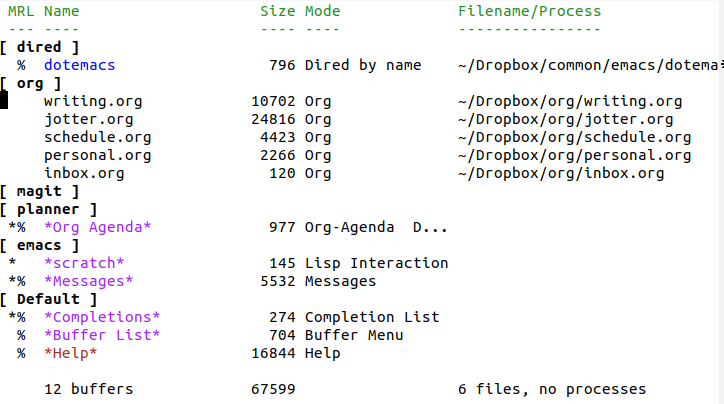
But that’s not all. ibuffer will group your buffers by type, just like in the featured image for this post. It also comes with a range of commands for filtering buffers. Here are my five favourite commands:

  1. t to toggle files selected
  2. / . to filter by extensions
  3. / p to remove top level filter
  4. * h Mark all help buffers
  5. * s Mark all *special* buffers

and here’s my set up: I’ve basically just adapted Martin’s.

(global-set-key (kbd "C-x C-b") 'ibuffer) ; instead of buffer-list
(setq ibuffer-expert t) ; stop yes no prompt on delete

 (setq ibuffer-saved-filter-groups
	  (quote (("default"
		   ("dired" (mode . dired-mode))
		   ("org" (mode . org-mode))
		    ("magit" (name . "^magit"))
		   ("planner" (or
				(name . "^\\*Calendar\\*$")
				(name . "^\\*Org Agenda\\*")))
		   ("emacs" (or
			     (name . "^\\*scratch\\*$")
			     (name . "^\\*Messages\\*$")))))))

(add-hook 'ibuffer-mode-hook
	  (lambda ()
	    (ibuffer-switch-to-saved-filter-groups "default")))

It took me about ten minutes to do all the above from start to finish. Ten minutes well spent, I say.