Future Proofing my Notes

As I mention last week, I’ve moved my notes to Obsidian. I’m going to talk about Obsidian another time, for the moment I want to talk about the notes themselves. Specifically, why I’ve converted all my notes to markdown.

A writer lives by their notes. Ideas; scenes; character sketches; dialogue; impressions, all carefully recorded and waiting to take on life someday in a story. I remember seeing Poul Anderson’s carefully typed list of story ideas in the science fiction museum in Seattle and feeling a warm glow of recognition. Not only that, but validation. I was doing this right.

I’ve got notes going back decades. Notes written in old exercise books, cheap reporter’s notebooks and expensive leather bound journals. I’ve experimented with devices such as Psion Organisers, Palm Pilots and even an iPod Touch.

The trouble with storing notes electronically used to be exporting them to a new device. Cross platform software like Evernote was a revelation as it meant you only needed to enter your notes once and then you could find them anywhere.

Evernote, Apple Notes, One Note and the like are fantastic. But what if you want to change to a new application? That’s where the problems arise.

The trouble is the way your notes look on the screen is not the same as the way your notes are stored on the computer.

Take this example


This is a Heading


Here’s how Evernote stores the above

 <note>
    <title>This is a Heading</title>
    <created>20230727T080748Z</created>
    <updated>20230727T080830Z</updated>
    <note-attributes>
      <author>Tony Ballantyne</author>
    </note-attributes>
    <content>
      <![CDATA[<?xml version="1.0" encoding="UTF-8" standalone="no"?>
<!DOCTYPE en-note SYSTEM "http://xml.evernote.com/pub/enml2.dtd"><en-note><ul><li><div><span style="color:rgb(0, 0, 0);">Here’s some text</span></div></li><li><div><a href="https://tonyballantyne.com" rev="en_rl_none"><span style="color:rgb(0, 0, 0);">Here’s a link to my website</span></a></div></li></ul><div><span style="color:rgb(0, 0, 0);"><span style="--en-markholder:true;"><br/></span></span></div></en-note>      ]]>
    </content>
  </note>

If you look carefully you can see the original text, along with metadata such as when the note was created, and formatting data such as the text colours. It’s hard to extract the relevant information from all that.

It’s worth noting, by the way, that Evernote is one of the good guys, they make it easy to export your data, they don’t go out of their way to obfuscate things and keep you in their system.

Here’s a better way of storing the above, this time using markdown.

# This is a Heading
- Here's some text
- [Here's a link to my website](https://tonyballantyne.com)

Looking at that you can understand why it would be sensible to store your notes in that format. It’s easy to read, it’s easy to transfer.

That’s why I’ve converted all my notes to markdown. They’re now stored on my devices, not in the cloud. I can invest the time in getting them just right without having to worry about having to convert them in the future.

So what about Obsidian? Obsidian has many fantastic features that I’ll talk about later, but the bottom line is that it functions as a markdown reader and editor.

In other words, if I decide I don’t like Obsidian in the future, I’ll simply choose another application that handles markdown.

Here’s what Stephan Ango, one of the guys behind Obsidian, has to say about this.
Au Revoir Evernote, Hello Obsidian

I know, I know. I’ve been in and out of love with Evernote for years now. You and I both know I’ll be probably writing a post in a year’s time saying how I’m using it again.

But not for now.

There are many, many positive things about Evernote. It’s the only app that does everything I need. The web app is superb, the web clipper and the facility to email notes are unequalled. You don’t realise just how thoroughly Evernote covers your needs until you try another app.

But there are problems too. Evernote’s direction of travel has diverged from mine. I don’t need RTE, I’m not really interested in AI support.

I want something that takes me to the right note straight away, that allows me to edit my notes quickly and effectively. I want to be able to get information into and out of the system without having to download it first. I want to be able to rearrange things without hassle. And that’s where Obsidian excels.

Obsidian isn’t perfect. Its not for casual users, the lack of a web app is a big problem, especially in a work environment with strict firewalls (I’ve bought an iPad to use at work to get round this). But the pluses are so much more than the minuses. Evernote seems to have lost interest in updating the note editor, the editing experience in Obsidian is fantastic, partly because it’s all based on Markdown, partly because it’s just so well thought out.

Even so, I would have probably remained with Evernote but for two things. First, they ceased development on the Linux client. This might be temporary, but no Linux support is always a deal breaker for me. I believe in paying for the software I use. I’m not paying for something that doesn’t support my preferred platform

But more importantly, it’s the realisation that it’s been five years since Ian Small acknowledged Evernote had stagnated and started to turn things around. Bending Spoons are making great strides in fixing things, in fact I wouldn’t be surprised if in three months it will be near perfect, but that will be too late for me. Six months ago I got fed up with notes not syncing, I downloaded Yarle and jumped ship to Obsidian and I’ve never looked back.

I still use Evernote. On those occasions when I want to share or collaborate its ideal. I still use the web app. I may yet be back, fully on board, in a year’s time, but for the moment I love Obsidian.

A New Way to Evernote

Many people in the Personal Knowledge Management field are getting excited by Maps of Content: a new way of organizing your notes.

A Map of Content is simply a note containing links to other notes. Now that Evernote has upped its linking capabilities, Maps of Content are now an option for Evernote users.

This post will help you get started


Begin by making a new note called the Home Note. You can star this or pin it to your dashboard.

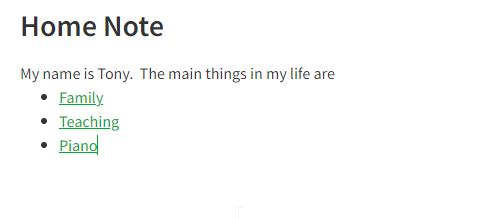
In your home note start writing about yourself. Here’s an example

My name is Tony.  The main things in my life are my family, my job as teacher and playing the piano.

Now look at that sentence. There are three areas in my life, family, teaching and piano, so I now create three new notes: Family, Teaching and Piano

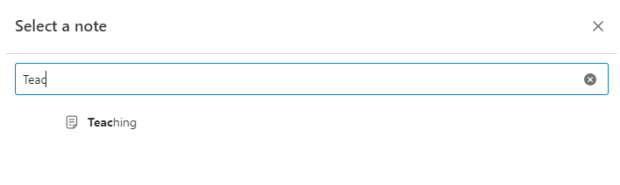
Go back to the Home note and add links to those notes.  It’s easy to do this on Evernote by hitting Ctrl + Alt + K on Windows or Cmd + Opt + K on Apple then using the Select a Note dialogue. Here I am selecting my newly created Teaching note.

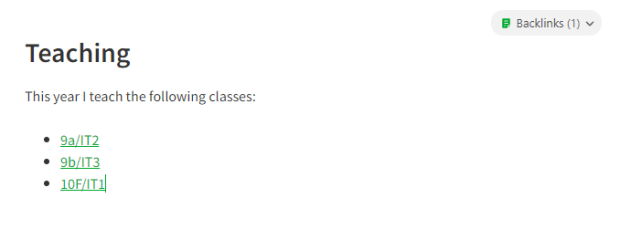
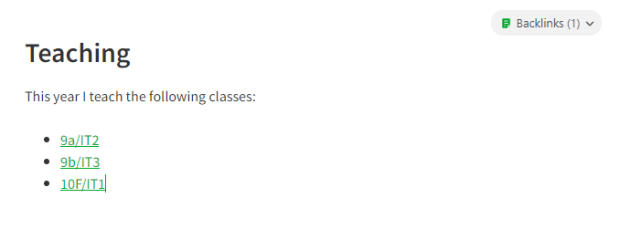
Now my Home note is done I go to one of the linked notes and start filling it in. Here’s an example:

I already have notes for the classes I teach so it’s straightforward to add links to them.

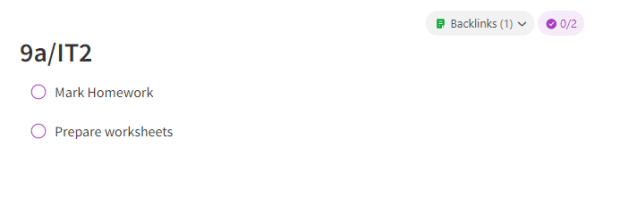
Now I can go to each class and start adding links or thoughts directly there.

My Maps of Content are building into a web of notes. I can navigate forwards using my links and backwards using the new backlinks feature.

The beauty of making Maps of Content is that I’m planning what I’m doing at the same time as I’m structuring my notes.

Using Maps of Content is a great way to grow your notes organically.  Folders are no longer used for navigation, they’re there for housekeeping only.

The great thing about this system is that you can run Maps of Content alongside your existing system for organisation. You’re just adding a new way to find the right note at the right time

Here are screen shots of the process so far:

Why not give Maps of Content a try? They might just change your life…

Capturing Emotion: Inspiration and Evernote

(This post originally appeared on the Evernote blog)

To slightly misquote Kate Sanborn, writing is 1% inspiration and 99% hard work.

When inspiration strikes, the world pauses, and the sky lights up. Everything about your story becomes clear, and you walk with a spring in your step for the rest of the day. You don’t need to capture inspiration; it fills your world.

This post isn’t about that 1%. It’s about other 99%, capturing all those little scraps that make up a novel. It’s about preparing the ground in which inspiration can take root.

Capture emotion, not just description 

Every writer carries a notebook with them for recording scraps. I still do, but most of my captures nowadays are via the Evernote app on my phone. Why my phone? Because I nearly always have it with me, and because it has a camera.

There’s something about capturing a scene live. Sol Stein said that writing is about communicating emotion. Good writers don’t just describe what scenes look like, they capture the emotions inherent in those scenes. That’s why when I see something interesting, I don’t just describe what it looks like, I describe how it makes me feel. 

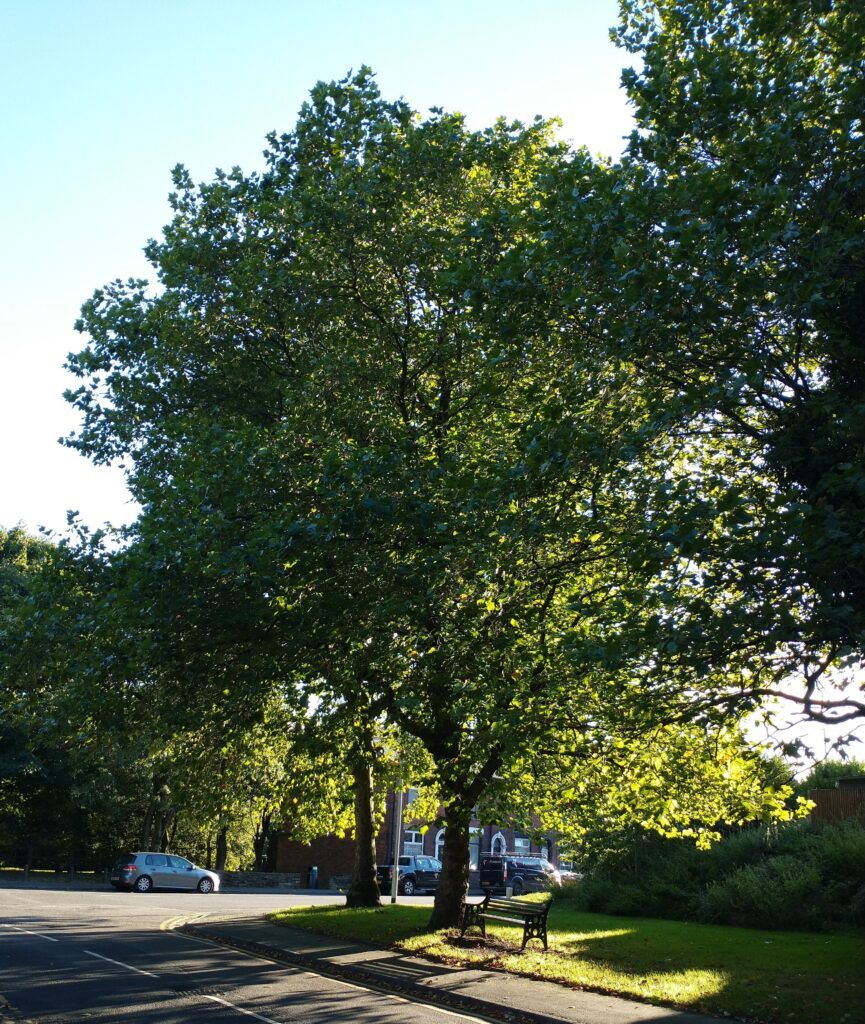
This is a picture of a tree near my house. I didn’t take the picture because it looked nice, but rather because something about the light and dark made me think of how the seasons were changing and time was passing.

I used Evernote to capture the image. Why? Because pictures just get lost on my camera roll, while saving them as notes means I can write comments beneath the picture itself. 

Remember: When making notes, you’re adding emotion, not just description.

Take a walk 

For me, the best way to get ideas—the best way to cure writer’s block, for that matter—is to take a walk. I can’t stress enough the importance of taking walks. I’ve written about that hereAnd hereI’m not the only person to think so, by the way.

Go for a walk and look around. Don’t listen to music; let your mind wander. The ideas will come. Start capturing your ideas—and don’t forget to capture the emotions that come with them. 

Using the quick notes widget on Android, I can end up with 40 or 50 notes which I then merge when I get home. Of course, you could add all the ideas to the same note if you prefer.

Walking isn’t only about capturing ideas, it’s a distraction that allows your mind to stop consciously trying to put together the pieces of the puzzle. Instead, those pieces are left to float free, to be jiggled into place by the subconscious. Writing is about getting to a place where the subconscious can take over. Letting your mind wander free is essential, and walking helps you to do it.

A good walk can produce a lot of notes. Not all of them will relate to the current work in process—these need to be retained and revisited later. Systems such as Zettelkasten are a great way to do this, and you can replicate this to a certain extent by using tags in Evernote.

My writing process 

Tags are one of Evernote’s most powerful features. Using tags, I can find all my characters, for example, no matter which story they are a part of. You can read more about my tagging system here. 

Every so often, I go through my notes. I tag them by story (for example, #threebears) and by things such as character, beat, and worldbuilding. Once you have all your notes neatly tagged, it’s time to sit down and write that story. 

Here’s how Evernote will write your book for you.

It won’t.

Of course, it won’t. Evernote is a productivity app, not a literary bot. No system is going to write your book for you, and that’s a good thing because if there were such a system, then writing would be no fun.

Here’s my real writing process:

I sit down and start writing. I allow the words to flow onto the page while I wait for my subconscious to take over.

My process is all about getting myself to a place where my subconscious can do its own thing. I believe that you should trust in your characters and listen to what they have to say. If you’re following your characters and letting them be themselves, then the story will unfold—maybe not how you want it, but in the way that it wants to go. The trouble comes when you try and force your characters to be what they’re not, when you twist them and make them act in arbitrary fashions to satisfy your initial plot. That’s when the contradictions build up, and the story crashes. If you can see that happening, it’s time to go out for a walk…

Stuck for ideas with NaNoWriMo approaching? Then don’t just sit there. Get out and capture some emotions!

Enjoy Your Sunday Evening

You’re a teacher: it’s Sunday evening and you can’t relax as you have work tomorrow. Why is that?

Partly it’s stage fright. Those outside the profession don’t understand the necessary performance that every teacher undertakes in the classroom.  Take a tip from professional musicians: they  know the best cure for performance anxiety is to be thoroughly prepared.

Lack of preparation is a big cause of stress: that nagging feeling that there’s something really important that you should be working on while you’re busy tackling day to day tasks.

Trust the System

Productivity Systems like GTD can help you tackle this stress: I talk about GTD here

GTD boils down to writing down every job, no matter how small. Once you’ve done that you just need to make sure the jobs turn up in the right order.  That way you can focus on the task in hand.

If you believe your system is working then you’ll trust that the right task will be presented to you when it needs to be done. Nothing will be forgotten.

Use the Calendar

Evernote offers a number of ways to ensure that you see the right task at the right time.  Every teacher should Connect Evernote to Google Calendar.  You may be lucky, your lessons may already be available on just such a calendar. If not, it’s worth the time spent inputting the lessons yourself.

Once you can see your lessons in the calendar, you can begin to add notes to the individual events. 

Each lesson can have its own note containing reminders on things such as students to chase and homework to set. Pro top: tag your notes with the name of the class. That way you can quickly filter to all notes relating to that class. 

One thing, don’t repeat yourself. If your teaching materials and marks are already in the school’s learning platform or MIS, leave them there. If you duplicate materials you won’t know which ones you last updated.

But teaching isn’t just about lessons. What about the other jobs that need to be done tomorrow?

That’s where tasks come in…

Five Tasks a Day

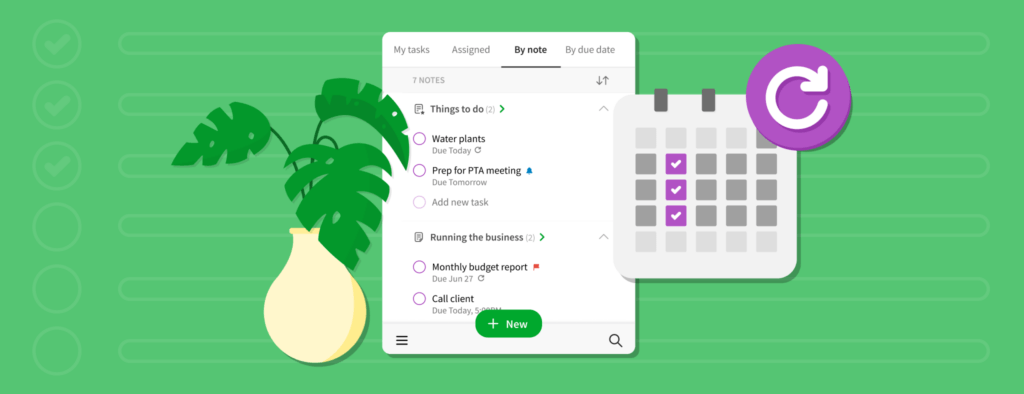
Tasks are your todo list. Add due dates to your tasks but be realistic: you can’t do everything tomorrow. The question you should ask yourself isn’t what COULD I do tomorrow but what HAS to be done tomorrow? Adding a due date to your tasks means you know that you won’t miss the tasks that HAVE to be done that day.

I aim to complete five tasks a day. Why five? Because five works for me. I look for a balance of bigger tasks such as marking a set of books and smaller tasks such as phoning a parent. Choosing a set number of tasks helps you to manage your expectations: you’re never going to complete everything that you want to do. Trying to do so leads to stress.

Your Day on a Page

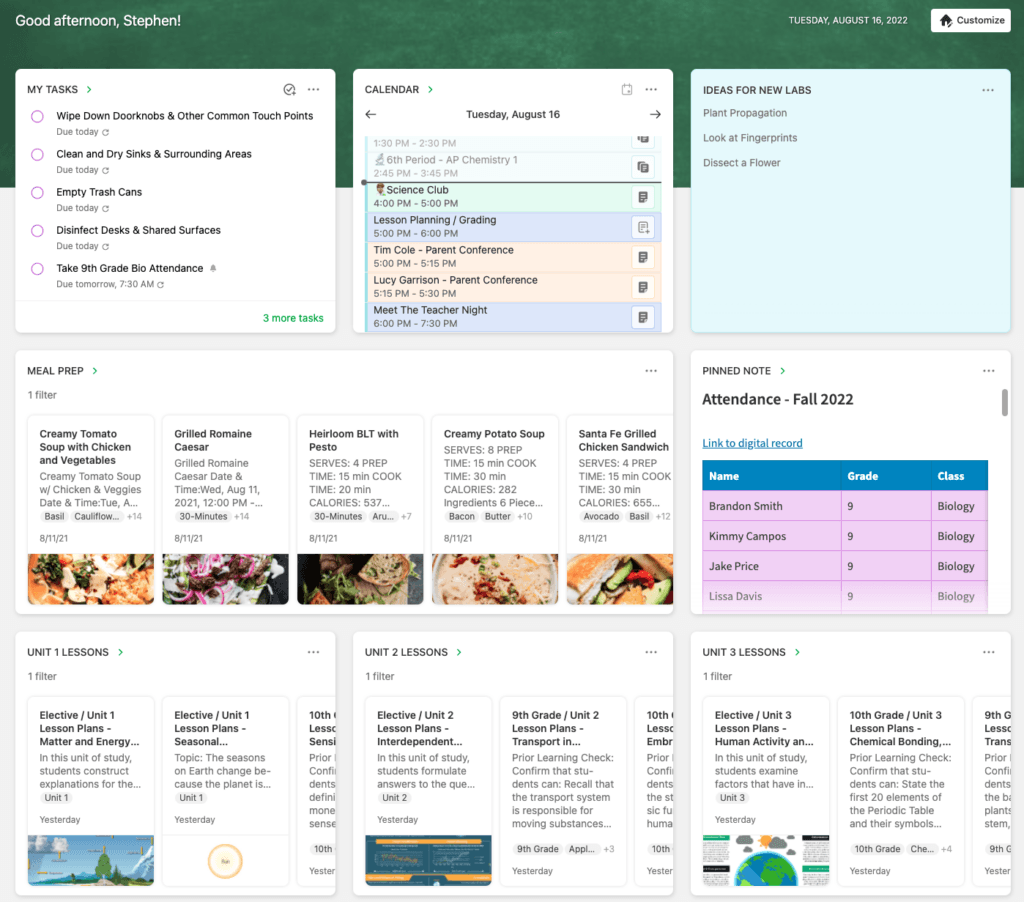
Lastly, have your home page set up. Tasks and Calendar. Your day on a page. You can see tomorrow’s jobs at a glance.

Enjoy your Sunday Evening

Now that you know that tomorrow is sorted you can forget it. It’s time to unwind and enjoy your Sunday evening…

Hands off that Mouse!

Four keyboard shortcuts you shouldn’t be without (and one Evernote really should implement…)

Want to know the easiest way to improve your productivity?

Stop using the mouse.

Watch an IT professional and you’ll see that their hands never leave the keyboard. They know that it takes a couple of seconds to move your hand from the keyboard to the mouse, and then to move the mouse to the right position on the screen and click. They know that the bigger the screen, the further the you have to move the mouse and the longer it takes to click. 

Learning just a few simple keyboard shortcuts can really speed things up. Here are three shortcuts you can use with Evernote and one that works everywhere.

1: Tab Switch between Applications

The first shortcut is nothing to do with Evernote; it’s something built into Macs, Windows and most Linux desktops 

Just suppose you’re surfing the web with your favourite browser (Safari, Chrome, Firefox, Edge) and you want to switch to Evernote to check something. 

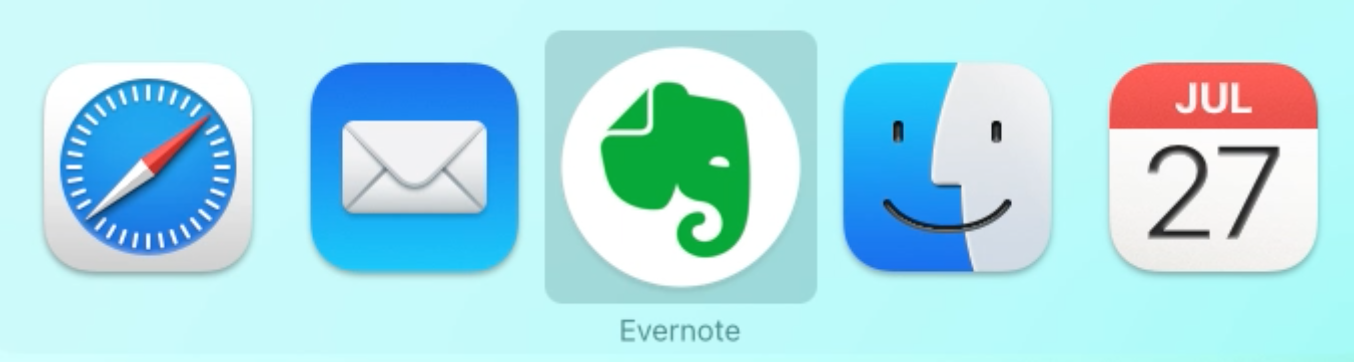
Don’t reach for the mouse. Hold the Alt key on Windows or the Command (⌘)   key on Apple and then press the tab key. 

As you press tab you’ll see your current open apps appear on the screen.

Repeatedly press tab until you have selected the app you want to switch to, and then let go.

Tab switching is clever. The apps rearrange themselves every time you tab switch so that the app you last used is only ever one tab away. Try it.

Once you’ve got the hang of this you’ll wonder why you ever used the mouse.

2: Finding a Note in Evernote

You have two choices here:

Either jump to the search bar using Ctrl Command (⌃⌘)  E on Mac or Win Shift F on Windows

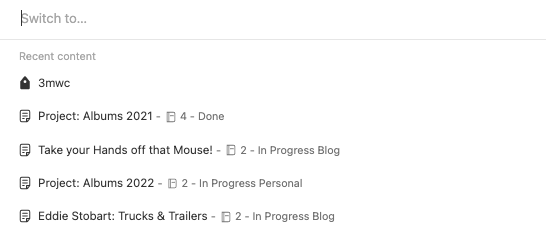
Or press Command (⌘) J on Mac or Ctrl Q on Windows to open the switcher.

The search bar remembers things like which notebook you’re in, the switcher does a fresh Evernote wide search with suggestions

Which is better? Why not try them both out and see which one you like?

If you want a new note: hit Command (⌘) N on Mac or Ctrl N on Windows

3: Finding something within a Note

Now that you’ve found your note, try and find a particular word within it.

First you have to jump to the note editor.   Hit tab repeatedly to get to it and then press enter.  (It has to be said, Evernote, you could come up with a better way)

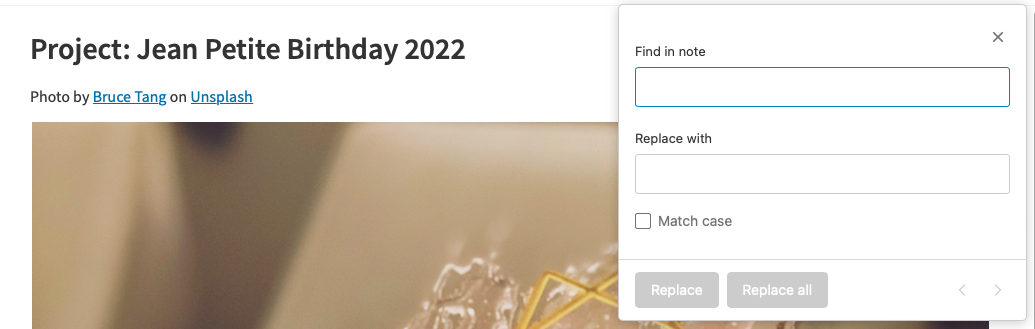
After that it’s just Command (⌘) F on a Mac or Ctrl F on Windows to bring up the Find in Note dialog

4: A Bonus Shortcut

The previous shortcuts help you work in Evernote. But if all you want to do is jot down a quick note there is an even faster way: the helper.

The helper is one of the most underutilised features of the Evernote desktop

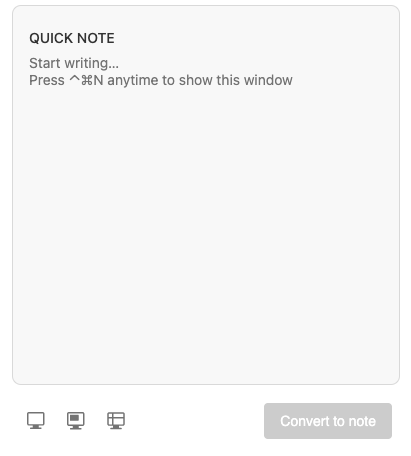
Ctrl Cmd (⌃⌘)  N on a Mac or Ctrl Alt H on Windows to bring it up. You can add a quick note here. You can even screenshot straight into Evernote

Test Yourself

Practicing the above shortcuts will help to get them into your muscle memory

Follow this link to see a copy of this page as a note. Save it Evernote.

Now, starting in another application see if you can find this elephant without using  the mouse

  1. Tab switch to Evernote (Cmd Tab or Alt Tab)
  2. Search for or switch to this note
  3. Search within the note for the word elephant

Your Day on a Page

For many people, going to College means freedom. Freedom to try new things, to do what you like, when you like.

Well, not quite.

You’re still going to have  lectures and tutorials to attend (that’s why you’re going, remember?)  You want to make sure that you know what you’re doing every day, so that you can really enjoy your free time without worrying that you’re behind on an assignment.

That’s where Evernote can help you.

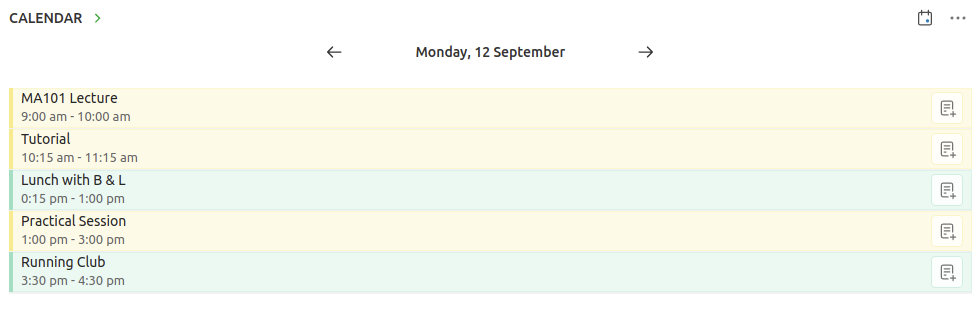
Evernote Home gives you your day on a page. Front and center should be your calendar. Your calendar will tell you where you need to be and when. Lectures, tutorials, practicals…

Setting up a calendar with all those details can be tedious. The good news is that 99% of the time your college will have your timetable already prepared and will share it with you via Google Calendar or Outlook. 

You can view that calendar on your home page on Evernote.  Here’s how you can add a Google Calendar. Evernote doesn’t support Outlook Calendar integration yet, but you can subscribe to your Outlook Calendar from your Gmail account. Scroll to the bottom of the page to see how.

Add your college calendar and when you open up Evernote in the morning you’ll have your day on a page before you.

But there’s more.

Searching is easy on Evernote, but why search when you can have the right notes appear at the right time?

Here’s a tip: link your study notes to your individual events.

Just suppose you’ve created a note with the materials you need for tomorrow’s 9am tutorial.  Link that note to the tutorial on the calendar on your Home Page. Here’s how to add link notes to calendar events.  Now the note will be there, just when you need it.

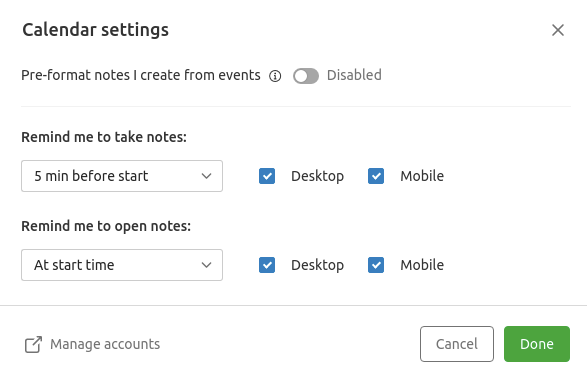
You can even get Evernote to remind you to open the notes as the lecture begins. Just go to Calendar settings (click the dots on the top right of the calendar widget).

If I only had two pieces of advice for people heading of to college, the above would be one of them. Follow this link to see the other…

Using Outlook

Using Outlook?  You can subscribe to your Outlook Calendar from your Gmail account, if your college allows you to share calendars.

  1. Go to Outlook and click on Settings (the cogwheel in the top right hand corner)
  2. Click on View all Outlook settings at the bottom
  3. Choose Calendar
  4. Choose Shared Calendars, just below Events from email. If Shared Calendars doesn’t appear then bad news, you’re college won’t allow this.
  5. Go to Publish a calendar and choose the calendar you want to share. Hit publish and copy the ICS link.  You
  6. Now open your Google Calendar
  7. Click on Cogwheel and Settings in the top right
  8. Choose Add Calendar and then From URL
  9. Enter the ICS link you copied earlier

Live Notes and Archives

Suppose every year I plan a birthday party for my good friend, Jean Petite.

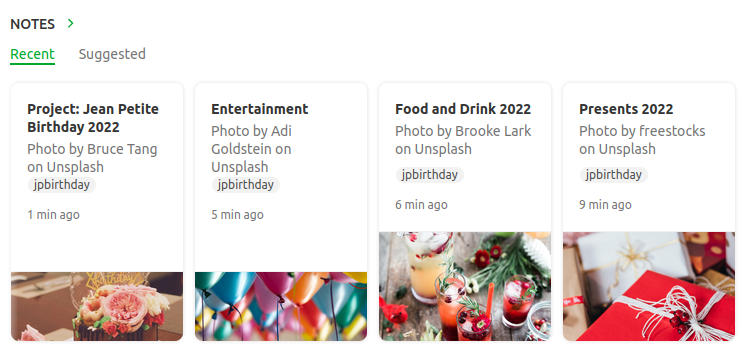
I have separate notes containing lists of presents, guests, food and drink, entertainment and so on.  I also have one master note named Project: Jean Petite Birthday 2022.  All the notes are tagged jpbirthday so I can find them quickly.

The party is a success. Even so, I create a new note outlining what went wells and even better ifs that I can refer to when planning next year’s party.

What happens when next year comes around?  Do I create new notes or use old ones? 

Some notes such as guests will just need to be modified, but others like food and drink may have to be done from scratch. I’ll probably want to create a new note for presents, but retain the old note so I don’t buy the same gift twice.

How do I stop the current notes getting mixed up with the old ones?

One way is to tag the notes by year: 2020, 2021, 2022 and then just filter to this year’s party.

Here’s a better way.

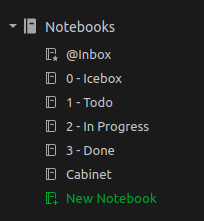
Create the following notebooks (the numbers are there so they appear in the correct order in the sidebar)

Put this year’s party notes in the In Progress Notebook. Put previous years’ notes in the Done Notebook.  Put reference notes, notes that don’t really change from year to year, in the cabinet.

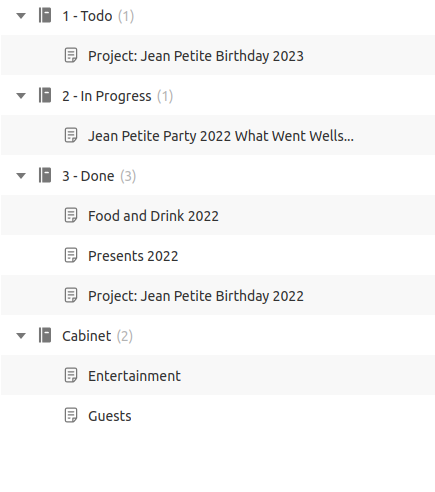
Notebook View

That way if you want to see this years notes, just filter to In Progress and jpbirthday.  To see only reference notes, filter to Cabinet and jpbirthday.  To see everything, just filter to jpbirthday

The system makes use of the fact that a note can only be in one notebook at a time. Notes can be Todo or In Progress, but never both at the same time. 

A lot of people recommend using tags to represent these states, I think they’re wrong.  I’ve written about that here: You’re Using Folders and Tags the Wrong Way Round

Two more things about this system.

The filtered notes widget works really well with this system.  You can use them to see this year’s party notes at a glance.

And lastly, I used to have a separate Archive Notebook for old notes.  This is no longer needed, they all just go in the Cabinet

Stop tagging your notes with todo and done. Use notebooks.

The Professional Side

I’ve written a lot about the tools I use to handle the creative side of writing. But what about the professional side?

It’s a principle of both GTD and Zettelkasten (the two productivity systems I follow) that you keep your reference materials separate from your work. I’ve learned by experience that this is excellent advice.

I’ve had 8 novels and around 70 short stories published. Here’s how I use Evernote to keep track of my writing career.

Story

The basic unit of my writing is a story. I use Evernote to create two notes for every story I begin, one for recording ideas and one for the professional details.

Here’s what goes into a “professional” note.

  • The date I started and finished the story (this is for my own interest.)
  • Dates of revisions, submissions to beta readers
  • Beta readers comments
  • Submission details.

Evernote has recently introduced a tasks feature that is ideal for keeping track of submission deadlines.

Once a story has been placed I add the following to the note:

  • The contract (usually a pdf)
  • Galleys
  • Date of publication, magazine issue (if appropriate)
  • Cover image. This is handy for producing publicity materials.
  • Reviews, quotations
  • Reprint details.

If you’re just starting out as a writer, I’d advise you to begin doing the above with your first sale. If your work is resold, editors want to know these details. Having them to hand will save you a lot of time in the future.

One last thing.

Evernote now allows you to place filtered widgets on your home page. I’ve set up a widget with works in progress or stories currently on submission. I can now see at a glance just what I should be doing.

Bio

I keep several bios on Evernote. A very short one, (22 words), short (60 Words) and longer (over 200 words). They are then when needed, though I usually have to update them at the time. I also have several photos I can download as needed.

Marketing

Evernote allows you to create a shareable page. This is ideal for creating a press release. Here’s an example for my recent novel, Midway.

Income and Expenses

I keep a separate record of sales, payments and residuals on a spreadsheet and I refer to this when doing my tax return. I use tables on Evernote for keeping track of day to day expenses. I keep a note bookmarked for the current tax year so it’s easily accessible.

Markets

I have a note with a list of markets. Evernote tasks are an easy way to keep track of submission windows and deadlines.

Interviews, Panels and Workshops

I may not do as many appearances as I used to, but all my past notes and presentations are stored on Evernote for reference.

Disclosure

I’ve had changing opinions of Evernote over the years (see this post). The new direction the company is taking, plus the addition of a Linux client (currently in Beta) mean I’m once more fully committed to the system, so much so that I’ve recently taken the exams to become an Evernote Expert. I receive a free professional subscription to Evernote. The opinions here are my own.

Productivity Overview

My second most popular post ever describes my Emacs Writing Setup. (My most popular post, if you’re interested, is this one.)

I wrote five novels and about thirty short stories using the method described in my Emacs Writing Setup, all the while experimenting with other methods. For example, I replicated some Scrivener features in Emacs and wrote about them here.

But over the past year all this has changed. So much so that I’m rewriting my Emacs Writing Setup from scratch.

So what’s changed? Briefly, I’ve started using org-roam and Doom Emacs for my writing flow. This has had a knock on effect for my productivity flow in general.

I think that I’m a productive person. I’m an assistant head teacher. I’ve had 8 novels and around 70 short stories short stories published. I maintain three blogs. I play jazz piano, accordion and baritone horn and am a member of two bands. Most importantly I’m a husband, carer and father to two children.

My two secrets? I watch very little TV and I rely heavily on productivity systems. I think if you’re not using a system then you’re not meeting your full potential.

The systems I use are GTD and Zettelkasten. I’ve experimented with others, but these are the two that best match my needs and personality.

I’ve also experimented with various software applications over the years. I’ve yet to find one piece of software that meets all my needs, although Emacs comes close. If I were to work solely on a laptop, that’s all I would use, but like most people I also rely on a phone and browser.

Orgzly and beorg do a good job of replicating the Emacs experience on a phone, but Emacs without a proper keyboard is always unsatisfying. And, as yet, I’ve not found a satisfactory way of using Emacs via a browser.

So my current productivity system relies on three ‘applications’

  • Emacs
  • Evernote
  • Notebook and pen (I use Leuchtturm1917 notebooks and Uniball Jetstream pens for preference)

I use Emacs for most things, principally org-mode for writing and org-roam for Zettelkasten

Why do I use Evernote when I have Emacs? Remember, Zettelkasten is a tool for thinking, it’s not a reference tool. One of the principles of Zettelkasten is that you should separate your notes from your reference materials.

Evernote is ideal for reference, it’s also more suited for phone and browser access. The newly added Evernote Tasks feature goes some way to replicating org-agenda. Okay, it’s got a long way to go to match Emacs but I can live with it for the convenience. (I experimented with Todoist for a while before Evernote tasks came out. I liked Todoist so much I almost feel guilty for not using it. It’s an excellent piece of software, but I like to have all my to dos in one place)

Finally, I use a notebook for ideas and thinking things through.

As word documents are the de facto standard in the publishing world , I still use LibreOffice Writer for submissions and editing, but I would say that I spend 99% of my time on Emacs, Evernote and in my Notebook.

This series of posts describe how I use these Emacs, Evernote and my notepad to implement GTD and Zettelkasten, particularly to support my writing process. As I don’t have the patience to watch videos, as I’m not interested in personal anecdotes or dubious research to support self evident points I won’t be including any of those things here. I will include How Tos and config files for those who are interested.

If there’s anything missing, let me know.