There’s online debate at the moment about this advice traditionally given to writers. A lot of people are saying it’s over rated, that there are many times when trying to show not tell ends up getting in the way of the story. Sometimes a quick information dump is best.
They’re right. But they’re missing the point.
As Sol Stein said, story telling is all about communicating emotion. And as every romance reader and writer (and I used to be one of them) knows, it’s not enough to tell someone you love them, you have to show them.
How can a writer convince the reader that two people are in love?
It’s not enough to say that someone is attractive. In a traditional romance the man is nearly always tall and dark and handsome. Does this make him desirable? Maybe, if that’s your type, but it’s not enough. Maybe he’s good with his hands, maybe he’s thoughtful and compassionate. Better, but this is still really just telling.
How do you show that two people are attracted to each other? They blink, they blush, they get tongue tied, they laugh too long at each other’s jokes, they touch each other on the arm… They do things for each other.
Romance is a big emotion, it drives a plot. In some ways it’s an easier thing to write. How do you show that two people simply like each other, that they get along?
Learning how to do this is part of the craft writing, it comes with practice. It’s great to see it done well. Here’s a good example.
To slightly misquote Kate Sanborn, writing is 1% inspiration and 99% hard work.
When inspiration strikes, the world pauses, and the sky lights up. Everything about your story becomes clear, and you walk with a spring in your step for the rest of the day. You don’t need to capture inspiration; it fills your world.
This post isn’t about that 1%. It’s about other 99%, capturing all those little scraps that make up a novel. It’s about preparing the ground in which inspiration can take root.
Capture emotion, not just description
Every writer carries a notebook with them for recording scraps. I still do, but most of my captures nowadays are via the Evernote app on my phone. Why my phone? Because I nearly always have it with me, and because it has a camera.
There’s something about capturing a scene live. Sol Stein said that writing is about communicating emotion. Good writers don’t just describe what scenes look like, they capture the emotions inherent in those scenes. That’s why when I see something interesting, I don’t just describe what it looks like, I describe how it makes me feel.
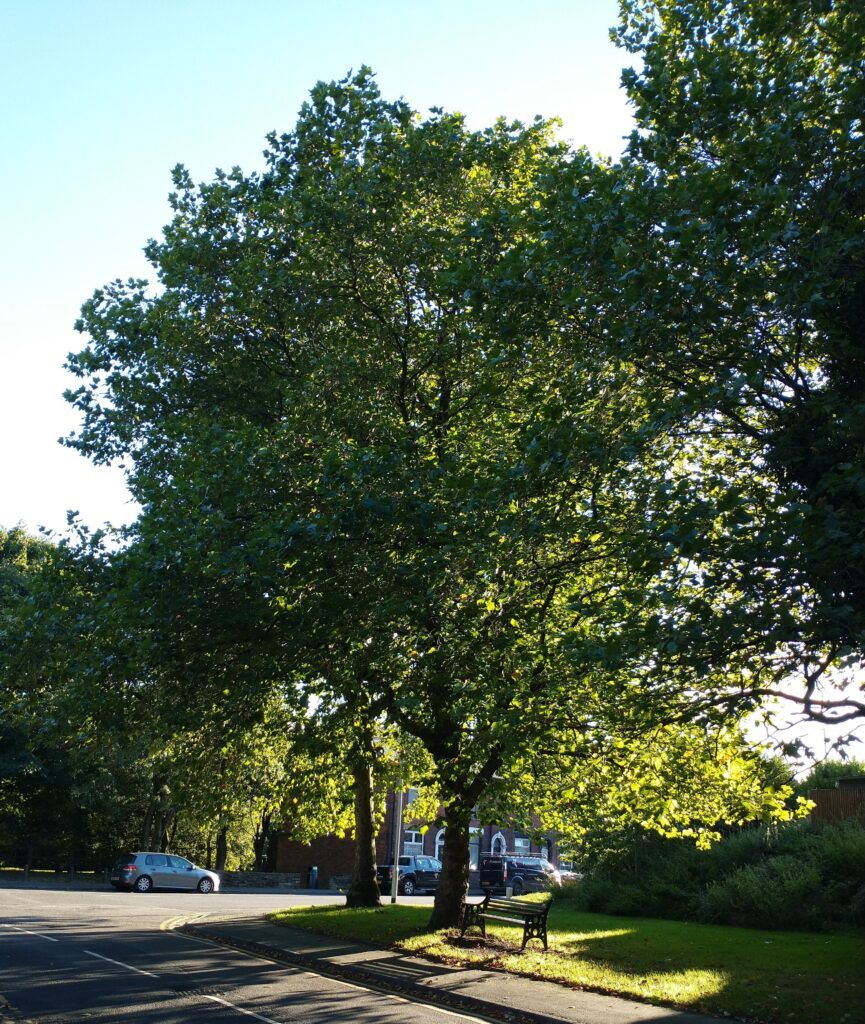
This is a picture of a tree near my house. I didn’t take the picture because it looked nice, but rather because something about the light and dark made me think of how the seasons were changing and time was passing.
I used Evernote to capture the image. Why? Because pictures just get lost on my camera roll, while saving them as notes means I can write comments beneath the picture itself.
Remember: When making notes, you’re adding emotion, not just description.
Take a walk
For me, the best way to get ideas—the best way to cure writer’s block, for that matter—is to take a walk. I can’t stress enough the importance of taking walks. I’ve written about that here. And here. I’m not the only person to think so, by the way.
Go for a walk and look around. Don’t listen to music; let your mind wander. The ideas will come. Start capturing your ideas—and don’t forget to capture the emotions that come with them.
Using the quick notes widget on Android, I can end up with 40 or 50 notes which I then merge when I get home. Of course, you could add all the ideas to the same note if you prefer.
Walking isn’t only about capturing ideas, it’s a distraction that allows your mind to stop consciously trying to put together the pieces of the puzzle. Instead, those pieces are left to float free, to be jiggled into place by the subconscious. Writing is about getting to a place where the subconscious can take over. Letting your mind wander free is essential, and walking helps you to do it.
A good walk can produce a lot of notes. Not all of them will relate to the current work in process—these need to be retained and revisited later. Systems such as Zettelkasten are a great way to do this, and you can replicate this to a certain extent by using tags in Evernote.
My writing process
Tags are one of Evernote’s most powerful features. Using tags, I can find all my characters, for example, no matter which story they are a part of. You can read more about my tagging system here.
Every so often, I go through my notes. I tag them by story (for example, #threebears) and by things such as character, beat, and worldbuilding. Once you have all your notes neatly tagged, it’s time to sit down and write that story.
Here’s how Evernote will write your book for you.
It won’t.
Of course, it won’t. Evernote is a productivity app, not a literary bot. No system is going to write your book for you, and that’s a good thing because if there were such a system, then writing would be no fun.
Here’s my real writing process:
I sit down and start writing. I allow the words to flow onto the page while I wait for my subconscious to take over.
My process is all about getting myself to a place where my subconscious can do its own thing. I believe that you should trust in your characters and listen to what they have to say. If you’re following your characters and letting them be themselves, then the story will unfold—maybe not how you want it, but in the way that it wants to go. The trouble comes when you try and force your characters to be what they’re not, when you twist them and make them act in arbitrary fashions to satisfy your initial plot. That’s when the contradictions build up, and the story crashes. If you can see that happening, it’s time to go out for a walk…
Stuck for ideas with NaNoWriMo approaching? Then don’t just sit there. Get out and capture some emotions!
You’re a teacher: it’s Sunday evening and you can’t relax as you have work tomorrow. Why is that?
Partly it’s stage fright. Those outside the profession don’t understand the necessary performance that every teacher undertakes in the classroom. Take a tip from professional musicians: they know the best cure for performance anxiety is to be thoroughly prepared.
Lack of preparation is a big cause of stress: that nagging feeling that there’s something really important that you should be working on while you’re busy tackling day to day tasks.
Trust the System
Productivity Systems like GTD can help you tackle this stress: I talk about GTD here.
GTD boils down to writing down every job, no matter how small. Once you’ve done that you just need to make sure the jobs turn up in the right order. That way you can focus on the task in hand.
If you believe your system is working then you’ll trust that the right task will be presented to you when it needs to be done. Nothing will be forgotten.
Use the Calendar
Evernote offers a number of ways to ensure that you see the right task at the right time. Every teacher should Connect Evernote to Google Calendar. You may be lucky, your lessons may already be available on just such a calendar. If not, it’s worth the time spent inputting the lessons yourself.
Once you can see your lessons in the calendar, you can begin to add notes to the individual events.
Each lesson can have its own note containing reminders on things such as students to chase and homework to set. Pro top: tag your notes with the name of the class. That way you can quickly filter to all notes relating to that class.
One thing, don’t repeat yourself. If your teaching materials and marks are already in the school’s learning platform or MIS, leave them there. If you duplicate materials you won’t know which ones you last updated.
But teaching isn’t just about lessons. What about the other jobs that need to be done tomorrow?
That’s where tasks come in…
Five Tasks a Day
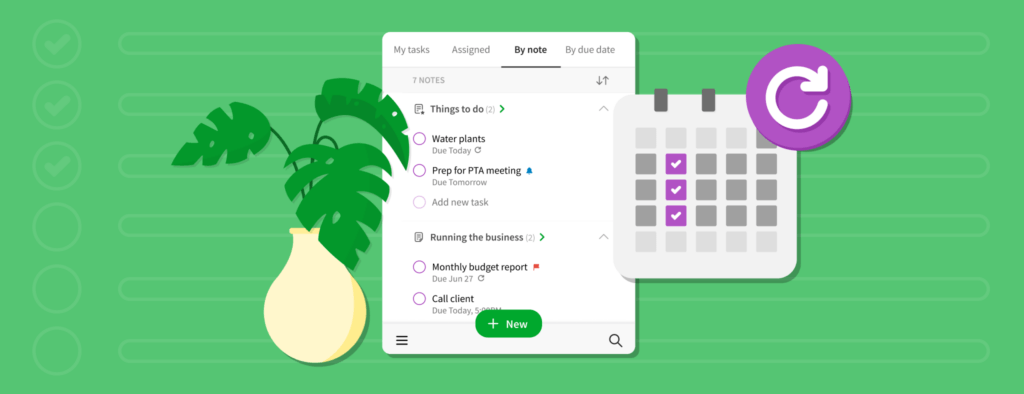
Tasks are your todo list. Add due dates to your tasks but be realistic: you can’t do everything tomorrow. The question you should ask yourself isn’t what COULD I do tomorrow but what HAS to be done tomorrow? Adding a due date to your tasks means you know that you won’t miss the tasks that HAVE to be done that day.
I aim to complete five tasks a day. Why five? Because five works for me. I look for a balance of bigger tasks such as marking a set of books and smaller tasks such as phoning a parent. Choosing a set number of tasks helps you to manage your expectations: you’re never going to complete everything that you want to do. Trying to do so leads to stress.
Your Day on a Page
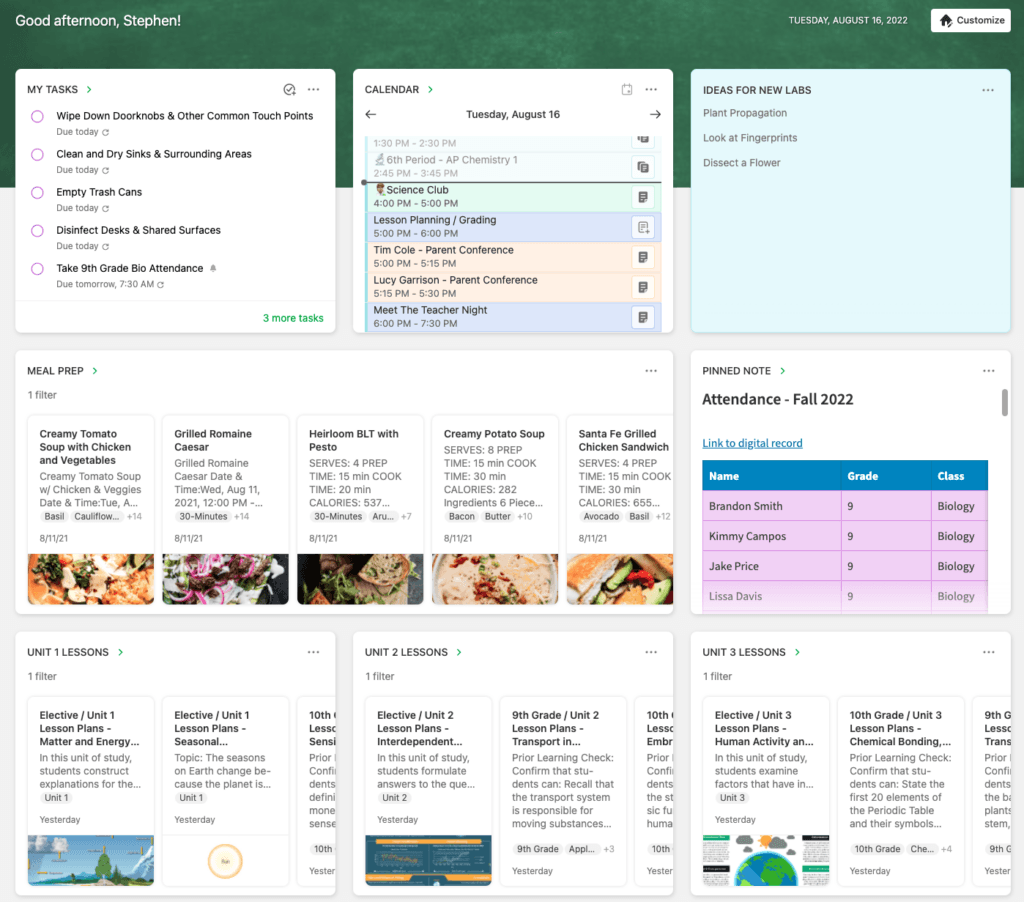
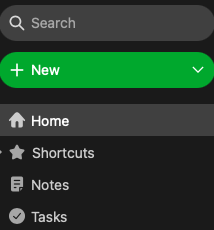
Lastly, have your home page set up. Tasks and Calendar. Your day on a page. You can see tomorrow’s jobs at a glance.
Enjoy your Sunday Evening
Now that you know that tomorrow is sorted you can forget it. It’s time to unwind and enjoy your Sunday evening…
Four keyboard shortcuts you shouldn’t be without (and one Evernote really should implement…)
Want to know the easiest way to improve your productivity?
Stop using the mouse.
Watch an IT professional and you’ll see that their hands never leave the keyboard. They know that it takes a couple of seconds to move your hand from the keyboard to the mouse, and then to move the mouse to the right position on the screen and click. They know that the bigger the screen, the further the you have to move the mouse and the longer it takes to click.
Learning just a few simple keyboard shortcuts can really speed things up. Here are three shortcuts you can use with Evernote and one that works everywhere.
1: Tab Switch between Applications
The first shortcut is nothing to do with Evernote; it’s something built into Macs, Windows and most Linux desktops
Just suppose you’re surfing the web with your favourite browser (Safari, Chrome, Firefox, Edge) and you want to switch to Evernote to check something.
Don’t reach for the mouse. Hold the Alt key on Windows or the Command (⌘) key on Apple and then press the tab key.
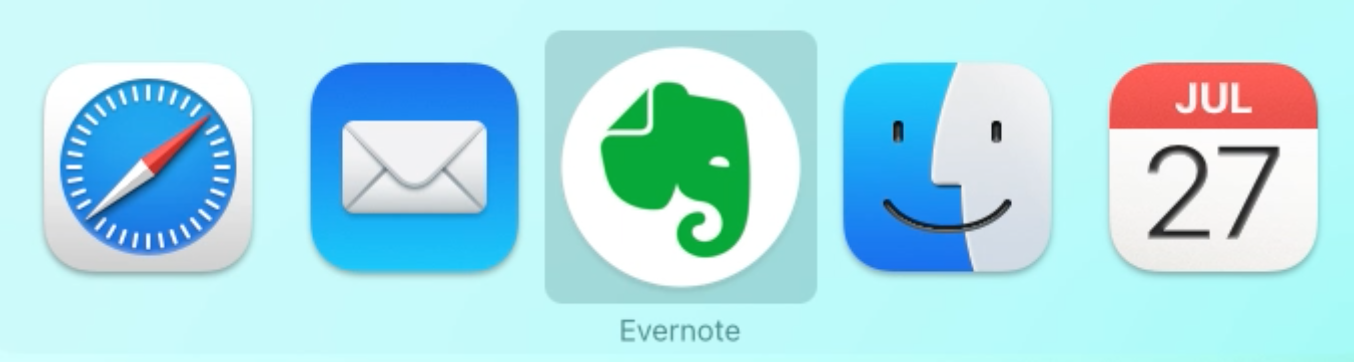
As you press tab you’ll see your current open apps appear on the screen.
Repeatedly press tab until you have selected the app you want to switch to, and then let go.
Tab switching is clever. The apps rearrange themselves every time you tab switch so that the app you last used is only ever one tab away. Try it.
Once you’ve got the hang of this you’ll wonder why you ever used the mouse.
2: Finding a Note in Evernote
You have two choices here:
Either jump to the search bar using Ctrl Command (⌃⌘) E on Mac or Win Shift F on Windows
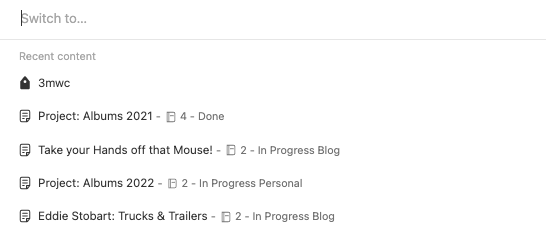
Or press Command (⌘) J on Mac or Ctrl Q on Windows to open the switcher.
The search bar remembers things like which notebook you’re in, the switcher does a fresh Evernote wide search with suggestions
Which is better? Why not try them both out and see which one you like?
If you want a new note: hit Command (⌘) N on Mac or Ctrl N on Windows
3: Finding something within a Note
Now that you’ve found your note, try and find a particular word within it.
First you have to jump to the note editor. Hit tab repeatedly to get to it and then press enter. (It has to be said, Evernote, you could come up with a better way)
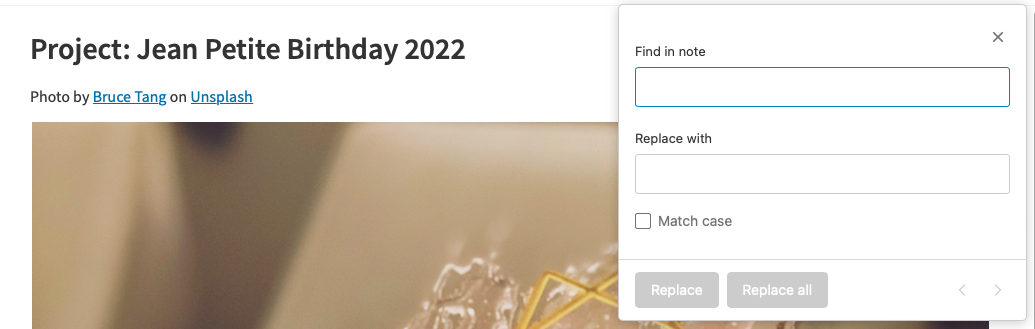
After that it’s just Command (⌘) F on a Mac or Ctrl F on Windows to bring up the Find in Note dialog
4: A Bonus Shortcut
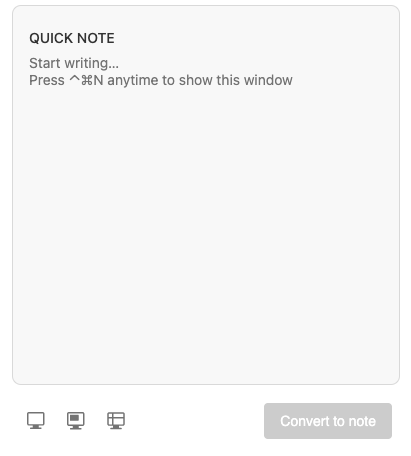
The previous shortcuts help you work in Evernote. But if all you want to do is jot down a quick note there is an even faster way: the helper.
The helper is one of the most underutilised features of the Evernote desktop
Ctrl Cmd (⌃⌘) N on a Mac or Ctrl Alt H on Windows to bring it up. You can add a quick note here. You can even screenshot straight into Evernote
Test Yourself
Practicing the above shortcuts will help to get them into your muscle memory
Follow this link to see a copy of this page as a note. Save it Evernote.
Now, starting in another application see if you can find this elephant without using the mouse
A big part of writing is putting the notes I’ve made into some sort of order. I spend a lot of time joining notes together to make scenes and then rearranging those scenes. Scrivener is good at the rearranging part (I’ve written about this here.) Where Scrivener falls down is the flexibility of search. Emacs allows me to home in on a scene, an idea or a sentence almost instantly.
I copied some of my writing process from Scrivener’s model, even going as far as writing a simple Emacs Scrivener mode. Doom Emacs has rendered that unnecessary. Tools like ripgrep and consult make it far quicker to find what I’m looking for. If you’re unfamliar with the following commands, try them out. You’ll be pleased that you did.
One last thing. Doom Emacs calls different commands depending on which completion engine you’re using. This means the search syntax may vary. I use the default (vertico at the time of writing) which means that searching for apples oranges will return lines containing apples and oranges. In other words: when searching, type one word for an initial selection, then a second to narrow it down.
10.0.1 Searching in Projects
SPC SPC find file in project
SPC s p search project for text
SPC s P search another project for text
SPC s d search files in directory for text
10.0.2 Searching in Buffers
SPC s s helper function search for text in current buffer. Matches are displayed in another window.
SPC s j helper function that goes to entry in evil’s jump list
SPC m . Jump to org heading (uses consult-org-heading)
And don’t forget
C-c C-j org-goto
10.0.3 Useful Tips
SPC s o Search online. t will search online dictionary, T thesaurus
Find an unmatched quote using this regex ^[^"]*"[^"]*$
10.0.4 M-x consult-ripgrep
For a more flexible search try consult-ripgrep. It’s worth reading the documentation, but here’s a taste:
#alpha beta Search for alpha and beta in any order.
#alpha.*beta Search for alpha before beta.
#\(alpha\|beta\) Search for alpha or beta (Note Emacs syntax!)
#word -- -C3 Search for word, include 3 lines as context
#first#second Search for first, quick filter for second.
For many people, going to College means freedom. Freedom to try new things, to do what you like, when you like.
Well, not quite.
You’re still going to have lectures and tutorials to attend (that’s why you’re going, remember?) You want to make sure that you know what you’re doing every day, so that you can really enjoy your free time without worrying that you’re behind on an assignment.
That’s where Evernote can help you.
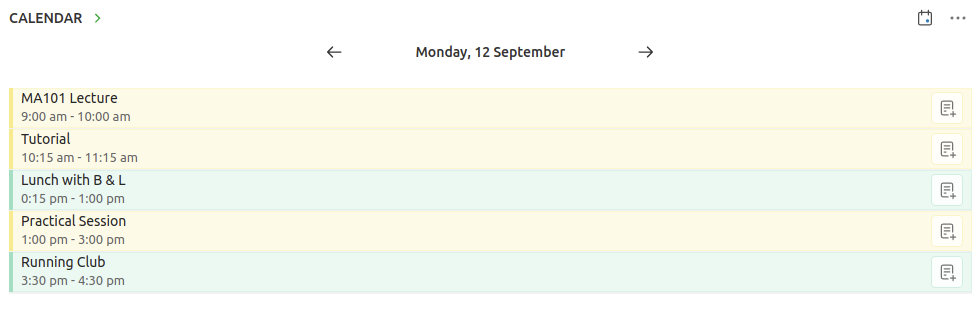
Evernote Home gives you your day on a page. Front and center should be your calendar. Your calendar will tell you where you need to be and when. Lectures, tutorials, practicals…
Setting up a calendar with all those details can be tedious. The good news is that 99% of the time your college will have your timetable already prepared and will share it with you via Google Calendar or Outlook.
You can view that calendar on your home page on Evernote. Here’s how you can add a Google Calendar. Evernote doesn’t support Outlook Calendar integration yet, but you can subscribe to your Outlook Calendar from your Gmail account. Scroll to the bottom of the page to see how.
Add your college calendar and when you open up Evernote in the morning you’ll have your day on a page before you.
But there’s more.
Searching is easy on Evernote, but why search when you can have the right notes appear at the right time?
Here’s a tip: link your study notes to your individual events.
Just suppose you’ve created a note with the materials you need for tomorrow’s 9am tutorial. Link that note to the tutorial on the calendar on your Home Page. Here’s how to add link notes to calendar events. Now the note will be there, just when you need it.
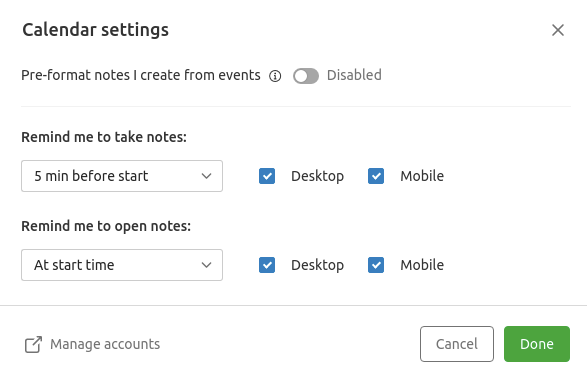
You can even get Evernote to remind you to open the notes as the lecture begins. Just go to Calendar settings (click the dots on the top right of the calendar widget).
Suppose every year I plan a birthday party for my good friend, Jean Petite.
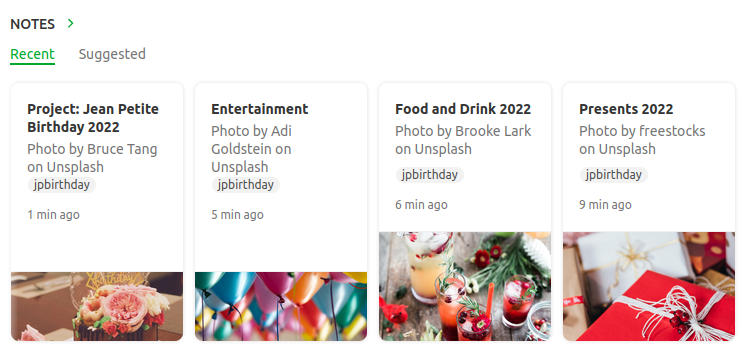
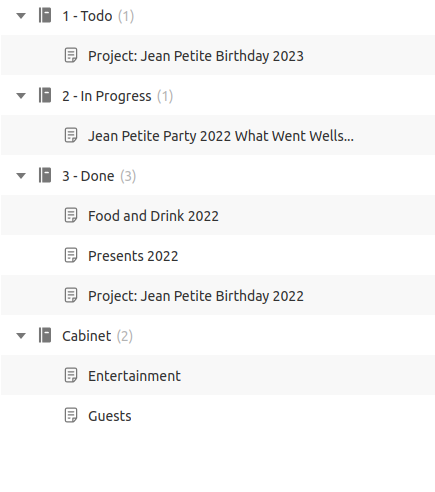
I have separate notes containing lists of presents, guests, food and drink, entertainment and so on. I also have one master note named Project: Jean Petite Birthday 2022. All the notes are tagged jpbirthday so I can find them quickly.
The party is a success. Even so, I create a new note outlining what went wells and even better ifs that I can refer to when planning next year’s party.
What happens when next year comes around? Do I create new notes or use old ones?
Some notes such as guests will just need to be modified, but others like food and drink may have to be done from scratch. I’ll probably want to create a new note for presents, but retain the old note so I don’t buy the same gift twice.
How do I stop the current notes getting mixed up with the old ones?
One way is to tag the notes by year: 2020, 2021, 2022 and then just filter to this year’s party.
Here’s a better way.
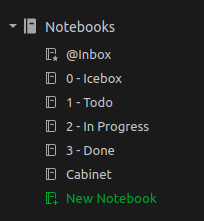
Create the following notebooks (the numbers are there so they appear in the correct order in the sidebar)
Put this year’s party notes in the In Progress Notebook. Put previous years’ notes in the Done Notebook. Put reference notes, notes that don’t really change from year to year, in the cabinet.
Notebook View
That way if you want to see this years notes, just filter to In Progress and jpbirthday. To see only reference notes, filter to Cabinet and jpbirthday. To see everything, just filter to jpbirthday
The system makes use of the fact that a note can only be in one notebook at a time. Notes can be Todo or In Progress, but never both at the same time.
This is in line with my philosophy that productivity systems are great procrastinators. Thinking of new tagging systems and states for tasks is very absorbing. You can spend hours moving notes around and not doing any work.
Calling org-agenda gives me a bird’s eye view of everything I’m working on. I can then filter down as appropriate.
For convenience, I wrote the following function to restrict the agenda to the current project. ou can see an example in my config.el file
(defun tb/agenda-restrict-this-project ()
    "Restrict agenda to current project"
    (interactive)
    (let ((org-agenda-files (list (projectile-project-root))))
      (org-agenda)))
I rely a lot on this function. When writing I hit SPC j p p (my keybinding: see my config.el file) to see the TODOs and IN PROGRESSes for the current project only.
It’s a principle of both GTD and Zettelkasten (the two productivity systems I follow) that you keep your reference materials separate from your work. I’ve learned by experience that this is excellent advice.
I’ve had 8 novels and around 70 short stories published. Here’s how I use Evernote to keep track of my writing career.
Story
The basic unit of my writing is a story. I use Evernote to create two notes for every story I begin, one for recording ideas and one for the professional details.
Here’s what goes into a “professional” note.
The date I started and finished the story (this is for my own interest.)
Dates of revisions, submissions to beta readers
Beta readers comments
Submission details.
Evernote has recently introduced a tasks feature that is ideal for keeping track of submission deadlines.
Once a story has been placed I add the following to the note:
The contract (usually a pdf)
Galleys
Date of publication, magazine issue (if appropriate)
Cover image. This is handy for producing publicity materials.
Reviews, quotations
Reprint details.
If you’re just starting out as a writer, I’d advise you to begin doing the above with your first sale. If your work is resold, editors want to know these details. Having them to hand will save you a lot of time in the future.
One last thing.
Evernote now allows you to place filtered widgets on your home page. I’ve set up a widget with works in progress or stories currently on submission. I can now see at a glance just what I should be doing.
Bio
I keep several bios on Evernote. A very short one, (22 words), short (60 Words) and longer (over 200 words). They are then when needed, though I usually have to update them at the time. I also have several photos I can download as needed.
I keep a separate record of sales, payments and residuals on a spreadsheet and I refer to this when doing my tax return. I use tables on Evernote for keeping track of day to day expenses. I keep a note bookmarked for the current tax year so it’s easily accessible.
Markets
I have a note with a list of markets. Evernote tasks are an easy way to keep track of submission windows and deadlines.
Interviews, Panels and Workshops
I may not do as many appearances as I used to, but all my past notes and presentations are stored on Evernote for reference.
Disclosure
I’ve had changing opinions of Evernote over the years (see this post). The new direction the company is taking, plus the addition of a Linux client (currently in Beta) mean I’m once more fully committed to the system, so much so that I’ve recently taken the exams to become an Evernote Expert. I receive a free professional subscription to Evernote. The opinions here are my own.
Like any writer I’m always capturing ideas. I used to carry a notebook everywhere, now I capture ideas on my phone using either orgzly or Evernote.
When working in Emacs I use org-capture.
GTD means capturing ideas quickly. I used to have templates to capture to different locations, I realised that this was an unnecessary step. Now I either capture everything as a TODO, either directly to my gtd file, or directly to the story file I’m currently working on.
As org-capture requires you to select a template I wrote the following two functions. The first calls org-capture with the ’t’ template preselected, the second does the same but uses let* to change org-capture-templates to the current buffer for the current capture only.
(defun tb/capture ()
    "Capture to do without options"
    (interactive)
    (org-capture nil "t"))

  (defun tb/capture-to-this-buffer ()
    "Capture note to this buffer"
    (interactive)
    (cond  ((not  (eq major-mode 'org-mode))
            (message "Can't capture to non org-mode buffer"))
           (t
            (let* ((this-file buffer-file-name)
                   (org-capture-templates
                    `(("t" "Todo" entry (file+headline ,this-file "Captured")
                       "** TODO %?"))))
              (org-capture)))))
2. Refiling Notes
org-refile makes it easy to refile notes, particularly with a completion system like Vertico. On Doom Emacs this means hitting SPC m r r